Greek
Greek
1. Log in to HARICA CertManager
Visit HARICA’s CertManager and sign up to create your account.
Your personal information must be accurate and fully matched (letter-by-letter) with a government-issued identification document.
2. Request for PSD eSeal Certificate
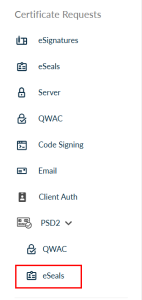
Once you log in, from the side bar, click PSD2 and select eSeals.
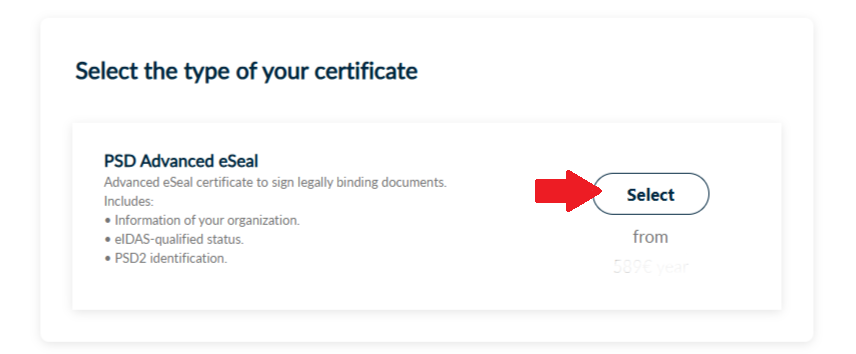
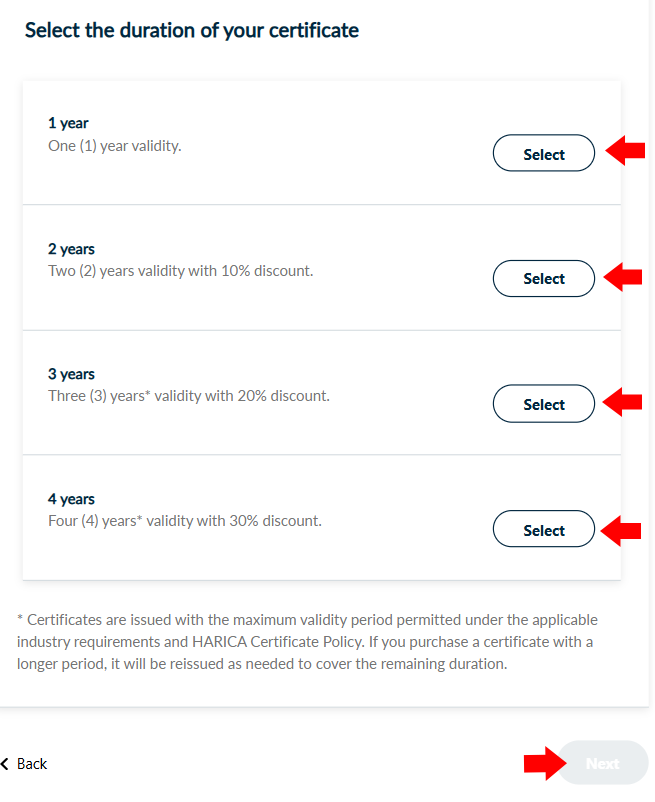
Select your certificate type.
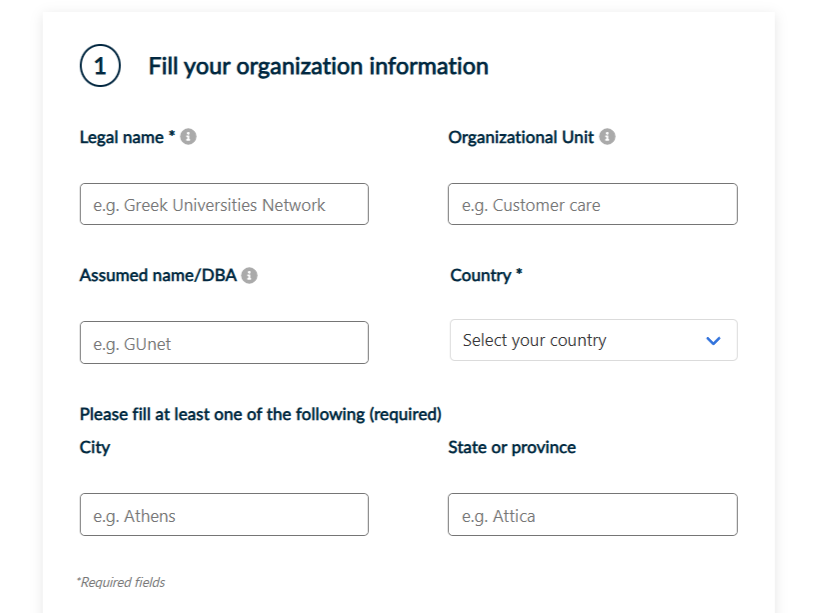
3. Fill in organization information
Fill in all the required information regarding your organization.
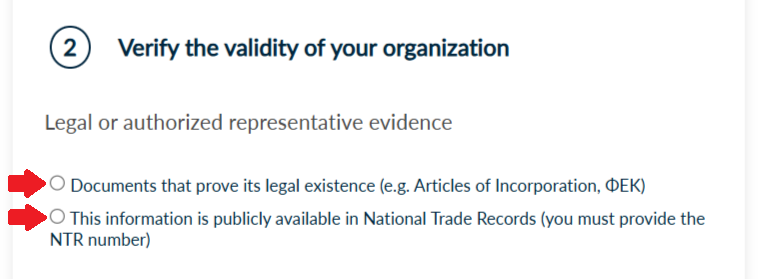
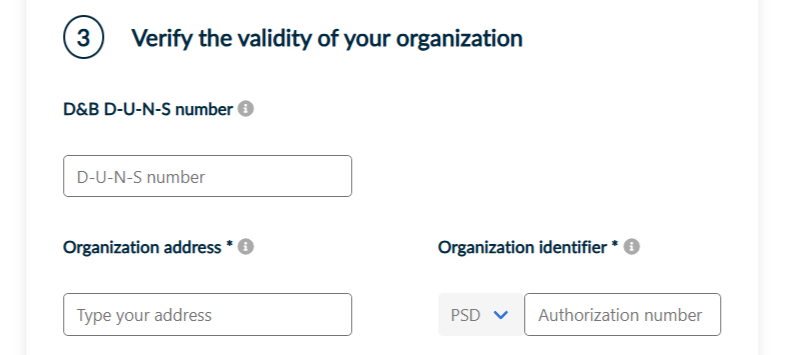
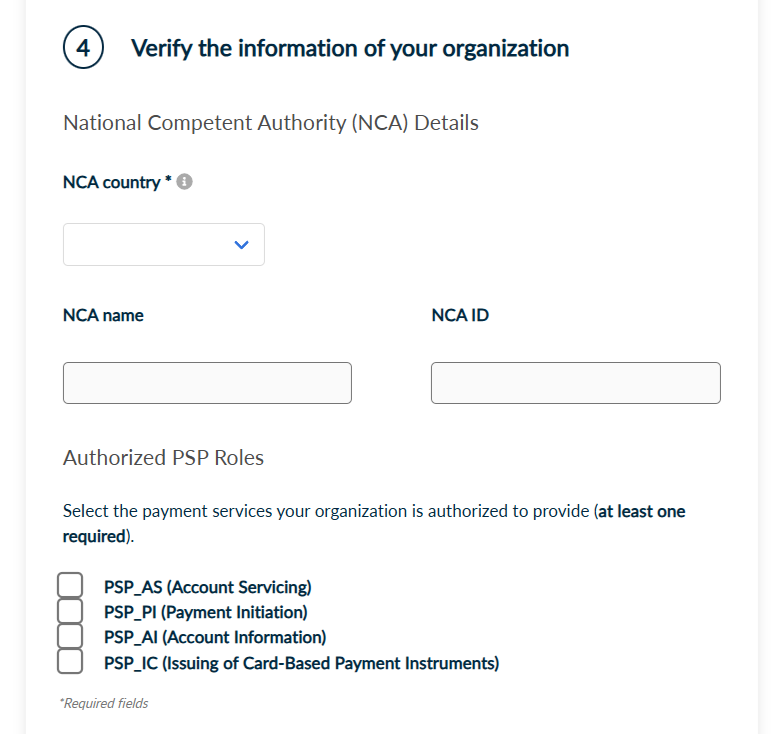
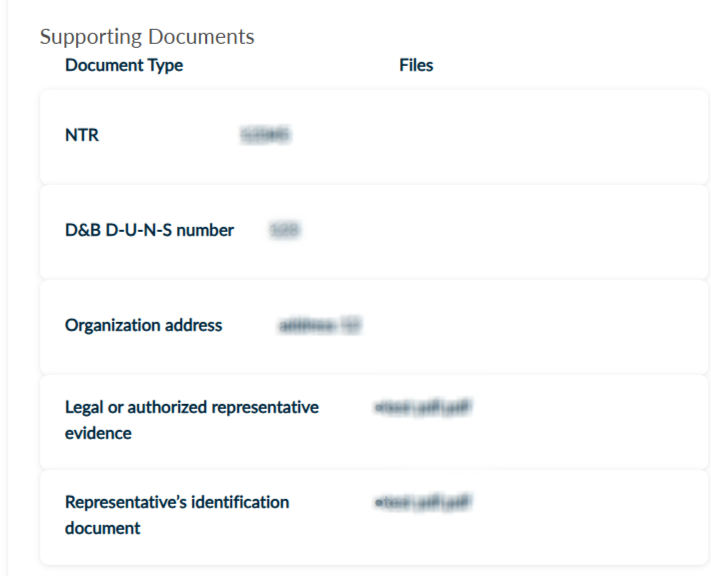
Verify the validity of your organization either by uploading all the required documents that prove its legal and operational existence (such as Articles of Incorporation, ΦΕΚ) or by providing the National Trade Records (NTR) number if this information is available in public records.
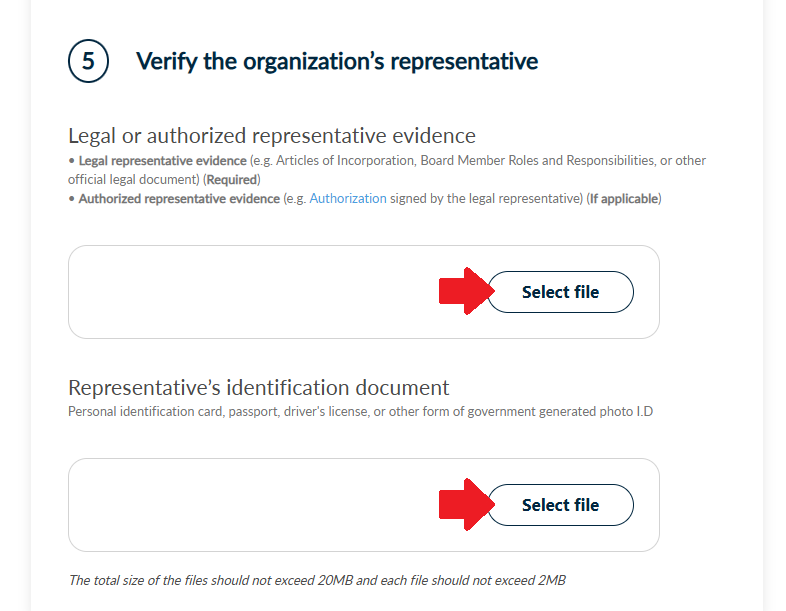
4. Select identity validation method
Choose one of the following identification methods to confirm your personal details. Then, click Next.
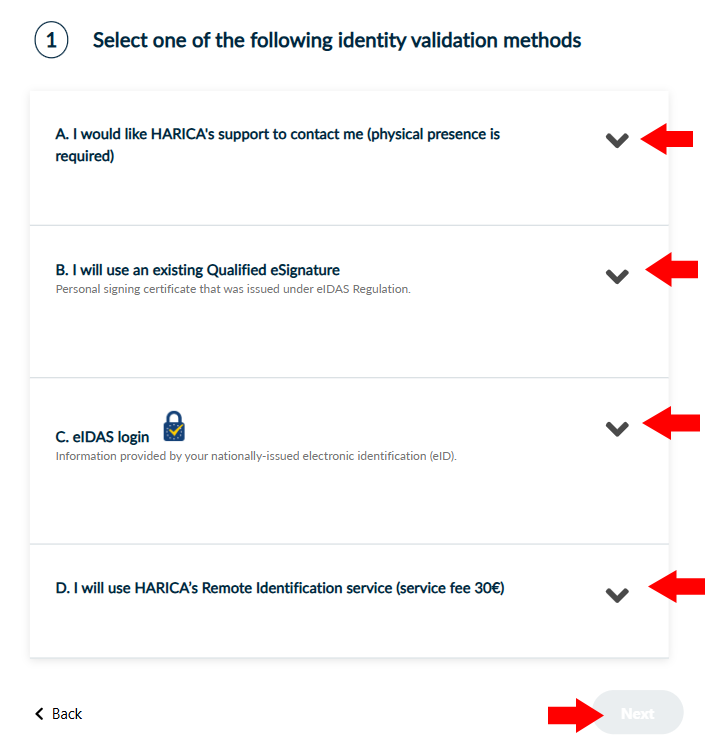
- In case you choose method A, your physical presence is required. HARICA’s validators will contact you for more information (e.g. arrange an appointment at HARICA’s Registration Office).
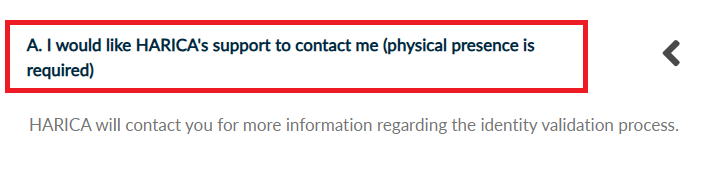
- In case you choose method B, the legal representative of your organization must fill in and digitally sign HARICA’s authorization form with a personal signing certificate.
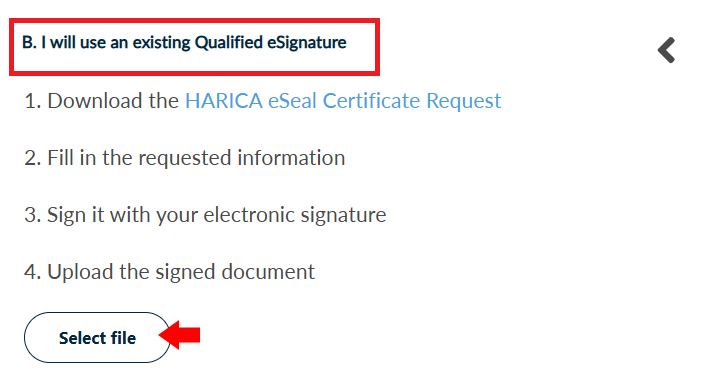
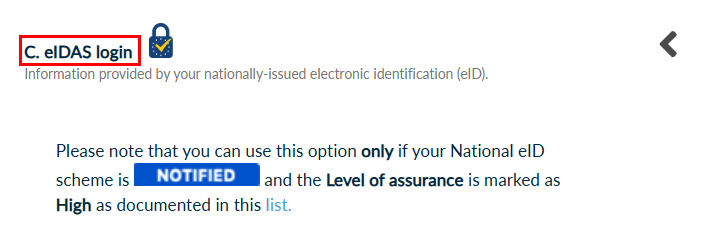
- Choose eIDAS login if your National eID scheme is NOTIFIED and the Level of assurance is marked as High as documented in this list.
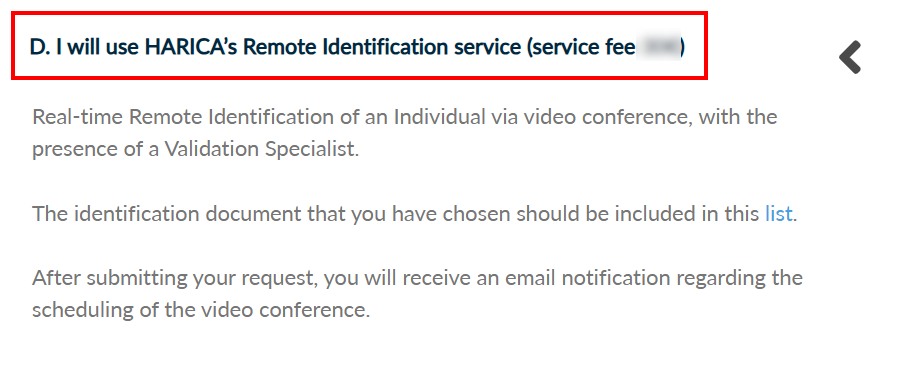
- In case you choose method D, you will use Real-time Remote Identification of an Individual via video conference, with the presence of a Validation Specialist.
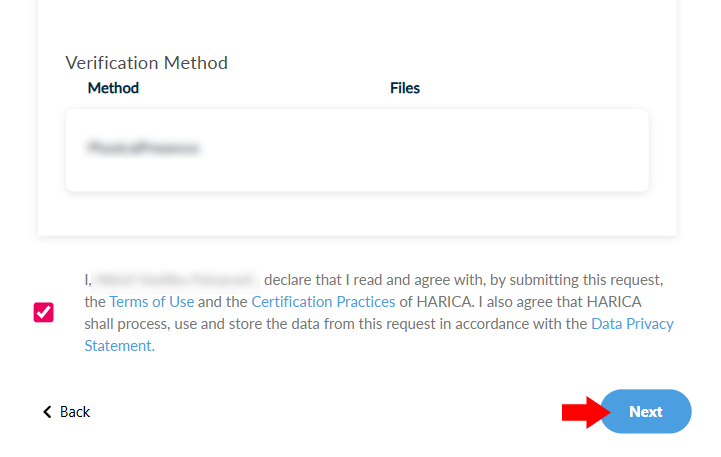
5. Review and submit request
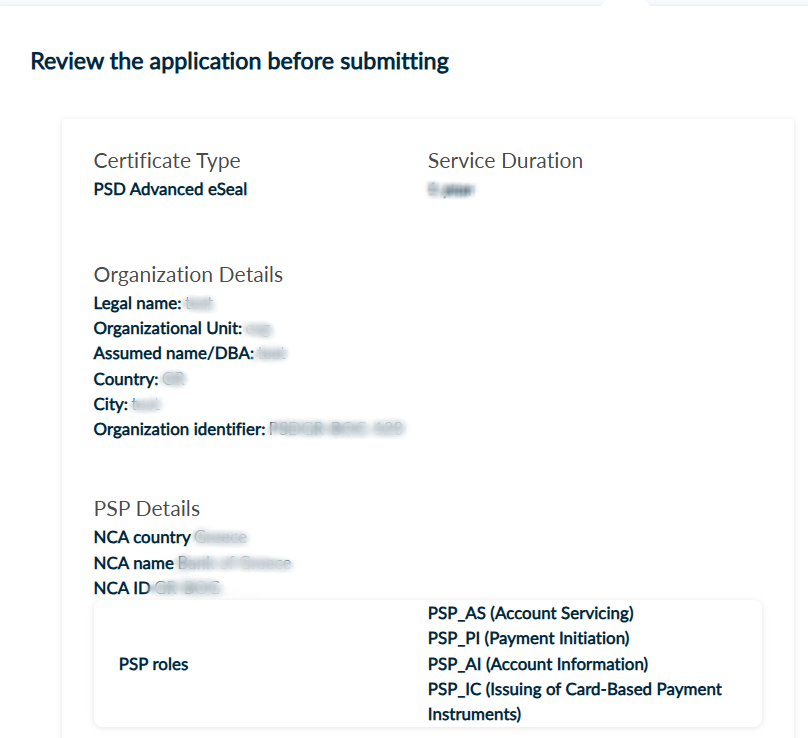
Check to make sure that all of the information is correct, accept the Terms of Use, the Certification Practices of HARICA and the Data Privacy Statement. Then, click Next.
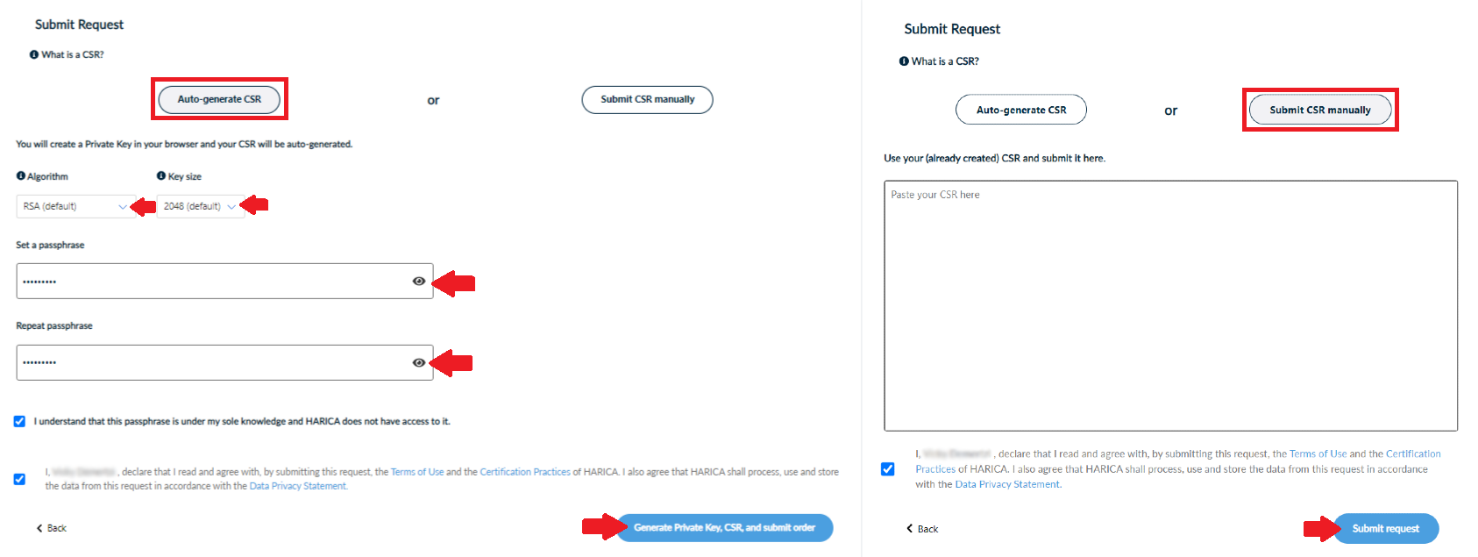
You have the option to generate your CSR in your browser using the auto-generation feature or submit one you have already prepared (e.g. using openssl).
The Auto-generate CSR option requires you to select the key type/size and set a passphrase that you must remember since it will protect the private key of your certificate. Click Generate Private Key, CSR, and submit order or Submit request, accordingly.
Download your protected private key and then click Go back to dashboard.
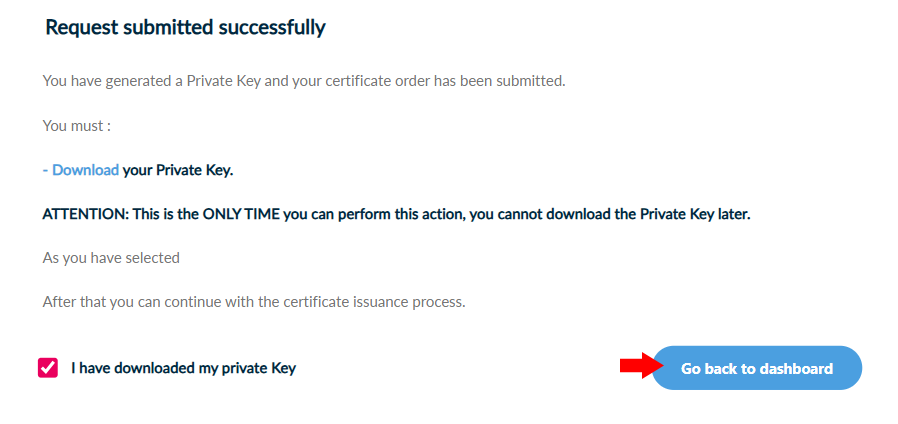
6. Complete Transaction
Once the request has been submitted successfully, the next step is to proceed to the payment of your eSeal. To do that, click Continue to Payment.

Fill in all the necessary information, click Continue to Payment and you will be redirected to our partner bank’s e-Commerce environment to complete the payment.
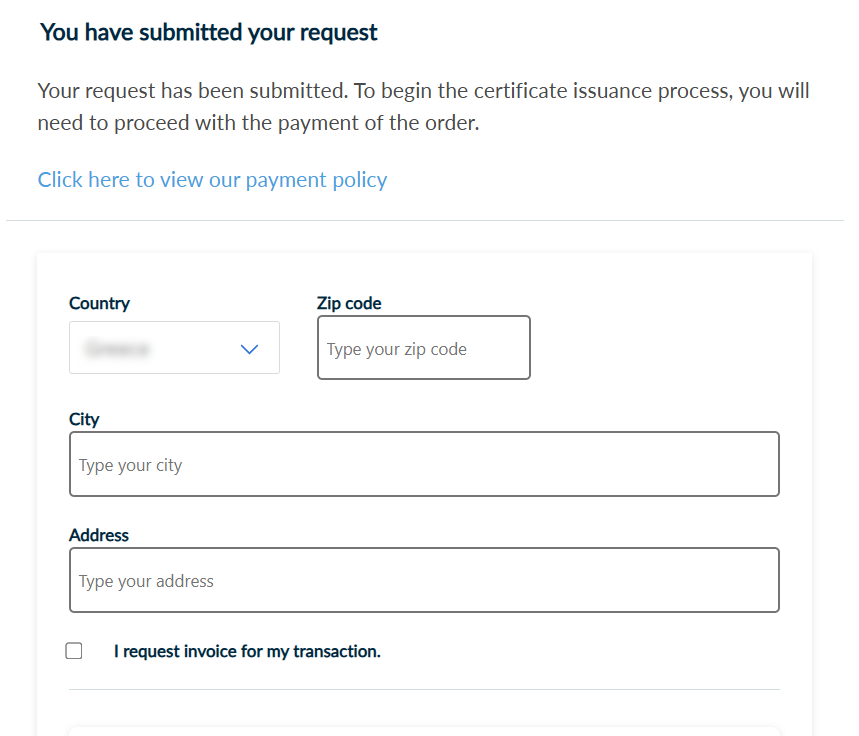
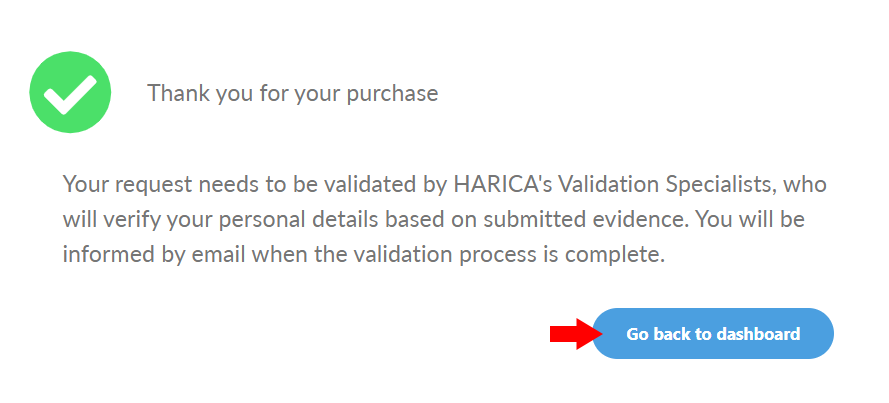
Once the payment is complete, you will be redirected back to HARICA’s CertManager confirming the purchase of your Certificate.
7. Wait for validation
The request is pending. Your request needs also to be approved by HARICA’s validators, who will check and verify the data that you have submitted.

8. Get certificate
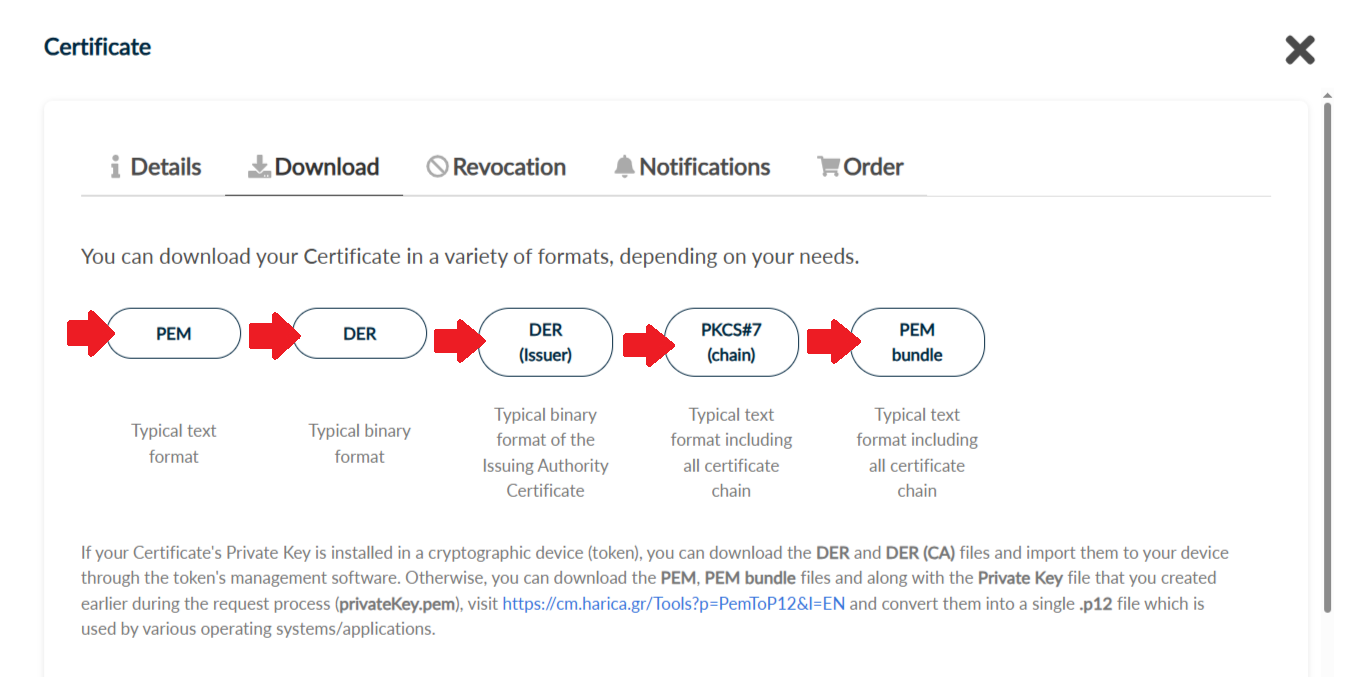
When the validation is completed, you can retrieve your certificate in different formats.